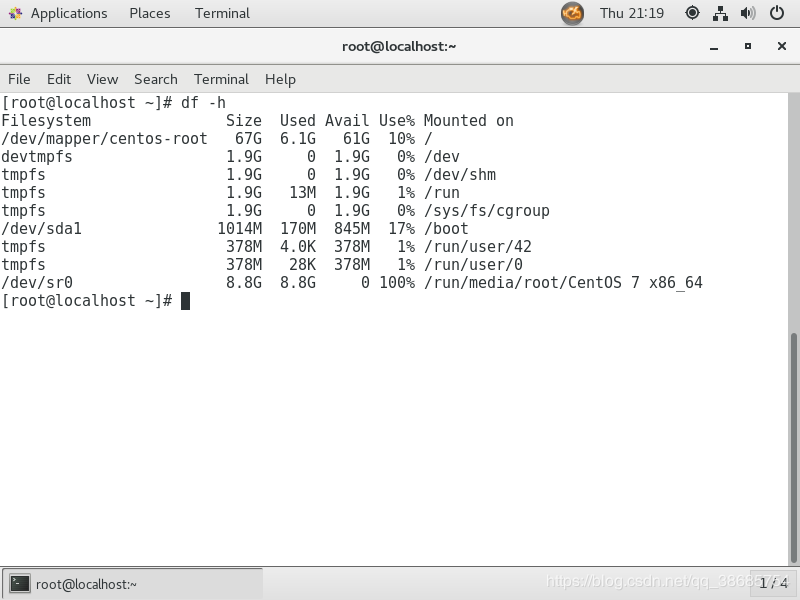
centos扩展空间大小
比如扩容根目录(/dev/mapper/centos-root 空间不足)
1、切换root用户
2、#fdisk -l #通过这个命令,查看到剩下的空间
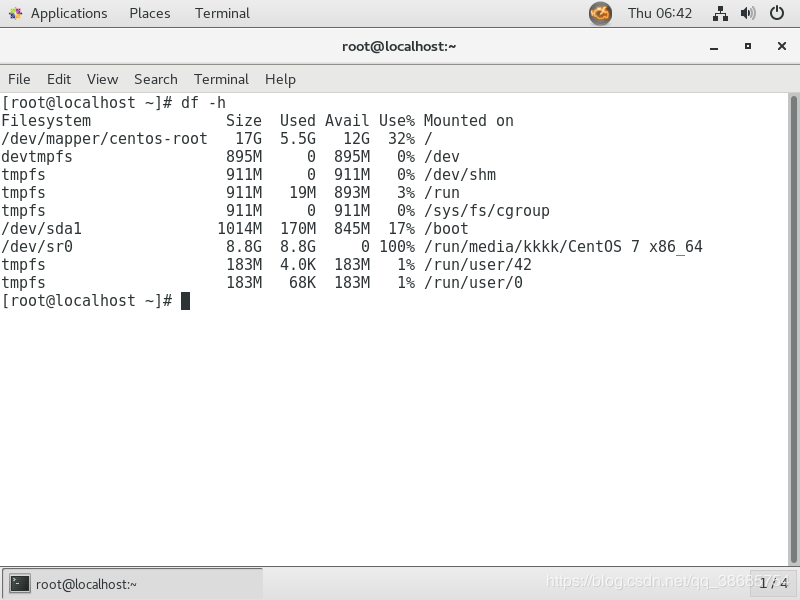
3、虚拟机关机,扩展磁盘大小。
4、开机,以root用户登录。
1、添加磁盘分区
a.使用fdisk添加小于2T的分区
命令行输入 #fdisk /dev/sda/ #开始添加新分区
5、列出命令列表,添加分区(可查看命令中n表示添加一个new partition)
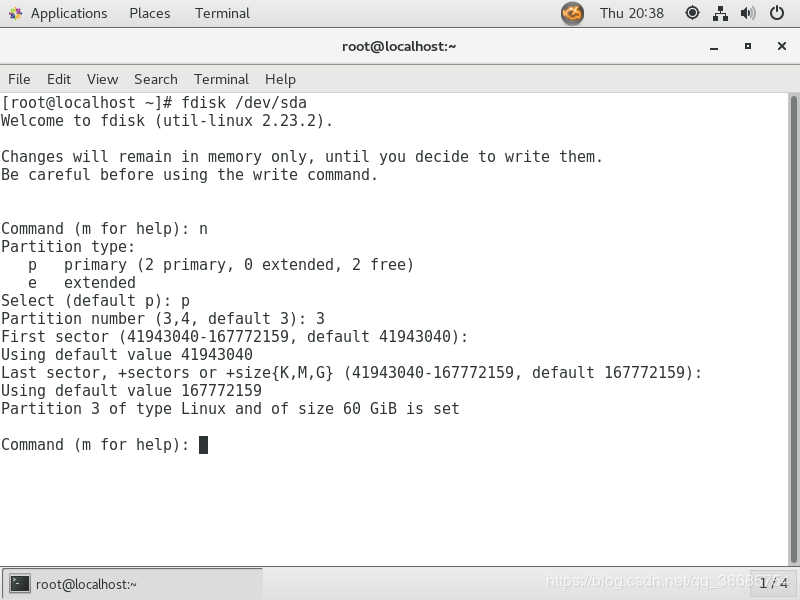
输入n,提示后默认输入p,用于创建分区的编号,一路回车即可。
输入w,保存所有并退出。
1. Command (m for help): w ## w 保存所有并退出,在保存后会有下面信息
2. The partition table has been altered!
3.
4. Calling ioctl() to re-read partition table.
5.
6. WARNING: Re-reading the partition table failed with error 16: Device or resource busy.
7. The kernel still uses the old table. The new table will be used at
8. the next reboot or after you run partprobe(8) or kpartx(8)
9. Syncing disks.
6、默认分配的linux逻辑卷组管理不是LVM以及id不是8e(8e表示LVM),所以需要将新分配的sda3更改为同sda2相同的LVM,接下来使用fdisk将其改成LVM的。
1. #fdisk /dev/sda
2. Command (m for help): t
3. Partition number (1-3, default 3): 3
4. Hex code (type L to list all codes): 8e
5. Changed type of partition ‘Linux’ to ‘Linux LVM’
6. Command (m for help): w
7. The partition table has been altered!
8. Calling ioctl() to re-read partition table.
9. WARNING: Re-reading the partition table failed with error 16: Device or resource busy.
10. The kernel still uses the old table. The new table will be used at
11. the next reboot or after you run partprobe(8) or kpartx(8)
#reboot #重启系统,使应用生效
7、fdisk -l 查看分区,会发现sda3变为了LVM,sda变大了,但是实际文件系统没有变大。
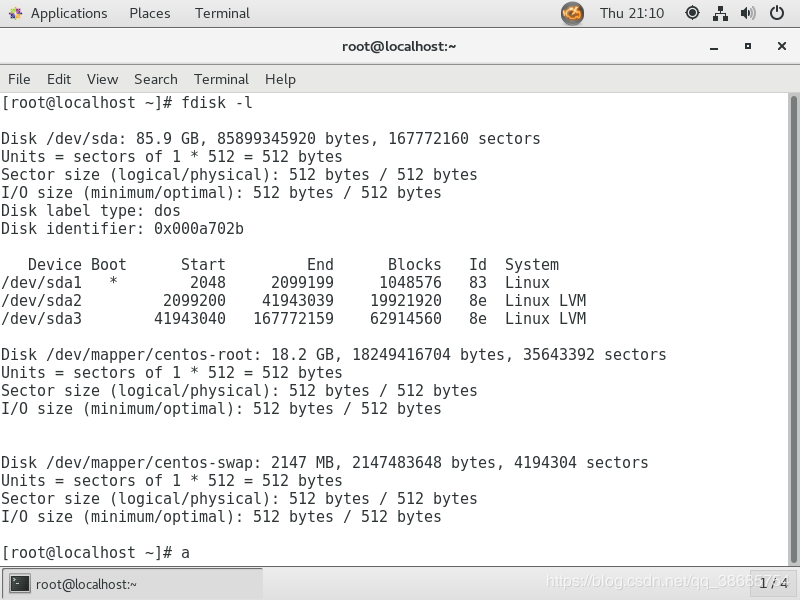
以上是使用fdisk命令进行分区,下面介绍使用parted命令添加大于2T的分区。
b.使用parted添加大于2T的分区
使用Parted分区:
# parted /dev/sda
GNU Parted 2.1
使用 /dev/sda
(parted) mklabel
新的磁盘标签类型? gpt #GPT就是GRUB分区表,如果是MBR,最大支持2T分区
(parted) p #打印一下信息这里的4398GB是磁盘容量
Model: DELL MD32xx (scsi)
Disk /dev/sda: 4398GB
Sector size (logical/physical): 512B/512B
Partition Table: gpt
Number Start End Size File system Name 标志
(parted) mkpart #新建分区
分区名称? []? #默认
文件系统类型? [ext2]? xfs #改为xfs
起始点? 0G #起点
结束点? 4398G #终点
(parted) p
Model: DELL MD32xx (scsi)
Disk /dev/sda: 4398GB
Sector size (logical/physical): 512B/512B
Partition Table: gpt
Number Start End Size File system Name 标志
1 1049kB 4398GB 4398GB
(parted) toggle 1 lvm #标记成lvm
(parted) p
Model: DELL MD32xx (scsi)
Disk /dev/sda: 4398GB
Sector size (logical/physical): 512B/512B
Partition Table: gpt
Number Start End Size File system Name 标志
1 1049kB 4398GB 4398GB lvm
(parted) quit
信息: You may need to update /etc/fstab.
2、创建LVM
8、创建pv #pvcreate /dev/sda3 (pvs #查看物理卷)
9、扩展vg #vgextend centos /dev/sda3 (vgs #查看卷组)
如果没有vg,需要创建vg: #vgcreate 名称 /dev/sdc1 #创建卷组
然后创建lv:#lvcreate -n [lv名称] -L 8T [vg名称] (lvs #查看逻辑卷)
新创建的lv需要格式化:mkfs.xfs /dev/卷组/逻辑卷
10、扩展lv,使用lvextend命令
1. #lvextend -L +50G /dev/mapper/centos-root
2. Size of logical volume centos/root changed from <17.00 GiB (4351 extents) to <67.00 GiB (17151 extents).
3. Logical volume centos/root successfully resized.
11、命令行输入命令,使系统重新读取大小
1. #xfs_growfs /dev/mapper/centos-root
2. meta-data=/dev/mapper/centos-root isize=512 agcount=4, agsize=1113856 blks
3. = sectsz=512 attr=2, projid32bit=1
4. = crc=1 finobt=0 spinodes=0
5. data = bsize=4096 blocks=4455424, imaxpct=25
6. = sunit=0 swidth=0 blks
7. naming =version 2 bsize=4096 ascii-ci=0 ftype=1
8. log =internal bsize=4096 blocks=2560, version=2
9. = sectsz=512 sunit=0 blks, lazy-count=1
10. realtime =none extsz=4096 blocks=0, rtextents=0
11. data blocks changed from 4455424 to 17562624
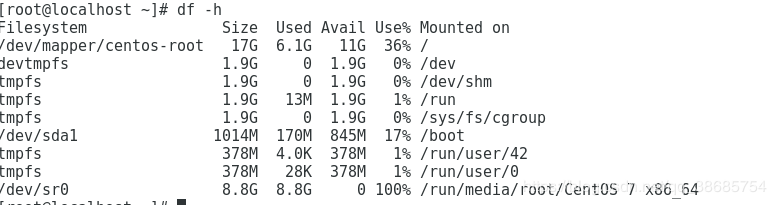
12、再使用df -h查看,可以看到根目录空间变大。